“How to Master Excel Formulas and Functions Without Going To Boring Excel Classes or Paying Expensive Tuition…Guaranteed!”
From the desk of Wong Hing
Date: Friday, 29 September 2017
Dear Fellow Excel User,
If you’d want to finally boost your Excel formulas and functions skills, increase your productivity, enhance your job security, and have more free time; then this might be the most important letter you’ll ever read.
My name is Wong Hing. I’m a Microsoft Office certified instructor for over 10 years. I have written and published several books including ‘The Ultimate Guide to Excel 2003 and 2007‘. What I want to share with you today is so revolutionary and exciting that you really don’t want to miss it. So please bear with me a little.
Let me start by telling you that I’m a highly effective computer trainer and college instructor, sought after by many professional Microsoft Office users as well as IT students in my own country. My major dilemma is – most of my clients are just too busy to adhere to the classroom schedules. In addition, many of them travel a great deal and it is impossible for them to attend my classes when they are on the road.
Average Excel users and students can master the basic skills of Excel on their own. But when dealing with more complicated projects that require applications of Excel formulas and functions, they could spend countless hours trying to come up with solutions.
Sound at all familiar?
That’s why I decided to do something about it. I came up with the idea to create a simple, yet extremely effective, real-life examples oriented ebook that my clients/students can study anytime, anywhere using a computer.
And finally…after lots of hard works, it is completed…
Announcing…
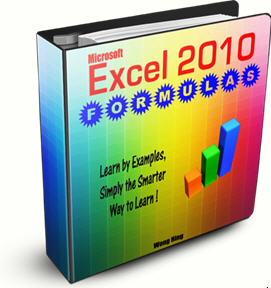
Well, I am very proud to tell you that…
I have put together this amazing 186-page ebook. Finally, you can master all the tricks behind the Excel 2007 and 2010 formulas and functions. And the most remarkable thing is, you can do it amidst the comfort of your own home, during transit in an airport, or any place you so prefer.
This book is written based on real-life examples, problems that you encounter daily at work. It has step-by-step instructions to show you how to resolve these problems. You will find that learning Excel is a lot easier than you think!
The best part is that you can download all the workbook examples that covered in this book so you can practice them anytime, anywhere.
Please note that this ebook is not meant for a complete novice as it does not cover the basic Excel features. However, we do include the fundamentals of Excel in the bonus section (video tutorials).
The Excel 2010 Formulas ebook covers Excel 2007 & 2010 formulas and functions comprehensively.
“Which of These Excel Formulas Tips
You Would Like to Master?”
Here’s an overview of the features of this book:
- Get to know the 5 types of formulas and the steps to write a proper formula.
- The different elements in a formula and how to avoid common mistakes in writing formula.
- Excel formulas’ order of operations – how to ensure that the calculations are performed in the correct orders.
- Discover the 3 ways to put the cell references in a formula (very useful tips!)
- Keys that allow you to master the 7 types of cell references. This is so Amazing!!
- How to create formulas with assumption tables.
- Find out how an Excel function works, it can make the learning process easier!
- Take advantage of commonly used build-in functions – all with step-by-step instructions.
- Array formulas and functions – you will love this too!!
Once you got the basics down and start to utilize the knowledge gained, you not only can accelerate your own learning; before soon, you’ll find yourself showing others how to use it. In other words, you can become an expert Excel user in a short period of time. This is possible because you will learn only features that matter and the methods that are most efficient.
“In This Ebook You Will find Excel Formulas Tricks That Can
Boost Your Productivity INSTANTLY!”
Before we go any further, there’s something I should tell you…
One of the most powerful features of Excel is Function (Formula), but it is also the most difficult area for Excel users to master.
Fortunately, the “Microsoft Excel 2010 Formulas” Ebook shows you dozen of Excel functions tricks – covering all the most commonly used functions in Excel 2007 and 2010.
This Ebook can really help you to boost your Excel skills to the next level.
We’re just getting warmed up here — you’ll also:
- Discover the mystery behind each of the Excel functions below through live examples in this Ebook:
AVERAGE, MEDIAN, MODE, FV, PMT, VLOOKUP, SUMIFS, COUNTIF, COUNTIFS, MAX, MIN, COUNTA, AVERAGEIFS, IF, AND, NOT, OR, SUMPRODUCTS, ROUND, MATCH, INDEX.
- Learn the following Excel functions in our super bonus section!!
RAND, ROW, CHAR, CHOOSE, RANDBETWEEN, BINOMDIST, HYPGEOMDIST, REPT, TEXT, ROUNDDOWN, ROUNDUP, INT, CEILING, FLOOR, TODAY, RANK, LARGE, SMALL, TRIM, CLEAN, CONVERT, VALUE, EOMONTH, DATE, YEAR, MONTH, COUNT, OFFSET, QUOTIENT, MOD, ROW, EDATE, YEARFRAC, FORECAST, DOLLAR, EXACT, AVEDEV, STDEV, VDB.
- Learn the new functions available in Excel 2010 including RANK.EQ and RANK.AVE.
Now, the best part of it all is, you can download my step-by-step real-life examples workbooks. These workbooks allow you to sharpen your skills by practicing over and over again.
“Your Newly Acquired Skills Will Be
Highly Valued and Sought After!”
With the helps of this Ebook, you will become an expert in Excel formulas and functions in a short period of time. You will become the go-to person for helps in creating effective spreadsheets with stunning diagrams and functions.
These special skills help set you apart from others, increase your overall value as an employee, enhance your job security, and improve your opportunity for advancement in your company.
They can also help you in seeking new employment. Potential employers will take notice of your exceptional knowledge in Excel. This will no doubt give you an advantage over other candidates.
You can become a GURU in Excel, a true Excel Pro’, now!
“I Really Want Give This a Try! But How Much Do I Have To
Invest For This Incredible Book?”
Let’s do some quick comparisons…
You could easily pay $50 – $75 bucks per month for an online membership sites that teaches Excel, (that’s over $600.00 per year!).
Or you could hire a personal trainer like me to work with you. I currently charge a minimum of $50.00 per hour for personal training. Normally, my clients come to me about 3 times a week, so that’s $600.00 per month, and thousands yearly.
But don’t worry. “Microsoft Excel 2010 Formulas” ebook won’t cost you anywhere near that. In fact, if you buy it now, you are guaranteed the unbelievable low price of $14.97!
That’s right, just $14.97! You get the ebook instantly, the key that can catapult you from a novice to an expert Excel veteran in no time at all.
Imagine… this little investment can literally make your life easier and more enjoyable.
“But Wait… There’s More!
If You Order Now, You’ll Also Receive
A Special Bonus!”
Since I want to make sure that it’s 100% to your benefit to act right away, I want to sweeten the pot and give you every possible reason to say YES today! If you respond immediately, you’ll also get the following:
Fast Action Bonus:
Excel 2007 Add-in and Template Pack
This pack contains two very useful excel add-ins/template:
1. Excel Menu – Add this to your Excel 2007 if you are not familiar with the ribbon.
- Adds old versions of Excel Menu bar, Standard toolbar & Formatting toolbar in the Excel 2007.
- All the three toolbars can be deleted by right clicking on the toolbar & select Delete Custom Toolbar.
2. Budget Planner – Excellent Excel template to plan your monthly budgets with great details. You also can:
- Monitor how well you are sticking to your budget.
- Track your actual income and spending. You can even track your spending on a daily basis.
And if all of that wasn’t enough, here’s more… I want to take this offer one step further!
“better-than-risk-free” Money Back Guarantee!

I’m going to give you 100% RISK-FREE, 30-day money back guarantee.
I say “better-than-risk-free” because the bonus is yours to keep even in the unlikely event that you decide to return the ebook.
There is absolutely NO RISK to you, if you decide to give “Microsoft Excel 2010 Formulas” ebook a try.
So get the Microsoft Excel 2010 Formulas today, spend some time studying it. If you don’t agree that you’ve received an exceptional value for your money, send me an email at support@msoffice-tutorial-training.com within 30-day, and you’ll get your money back courteously, promptly, and without hassles.
What’s more, ALL the Bonus materials are yours to keep as gifts from me for simply trying out my Ebook. You have everything to GAIN and nothing to lose.
So why wait when you can try it Risk-Free NOW?
Why should you decide right NOW?
Because this special low price won’t last. I intend to increase the price to more accurately reflect the actual value of this ebook.
This great opportunity is right in front of you, so take action NOW.
Remember, Nothing will change if you don’t take the first step to make things happen for yourself!
Before I finish, here are my final thoughts…
Are you serious about learning Excel the right way? Do you really want to increase your productivity? Do you want to greatly enhance your career prospects? If your answers are yes to these questions, I can help you to accomplish all of that.
Even though I am so confident with my proven product, I can’t expect you to take my word for it. That’s why I ask you to see for yourself and try out this Ebook entirely at my risk.
What I’m saying is, try it now and decide later. Order it Risk-Free NOW.
You Really Can’t Afford NOT To Invest In These
Proven, Hands-on, Risk-Free Way
To Master Excel 2010 Formulas and Functions!
Purchase Online with Credit Card by Secure Server
24 hours a day, seven days a week!
Note: You can checkout using your credit card without a PayPal account.
Once your credit card is approved, you will be taken to a special download page where you will download the e-book along with your FREE Bonuses.
To your success,
Wong Hing
Microsoft Office Certified Personal Trainer.
P.S. Just think! With a copy of Microsoft Excel 2010 Formulas you’ll never again suffer through the pain and hassle of completing Excel related tasks yourself. And you have nothing to lose as you can take a Full 30-day to decide! Remember…the 100% Money-back satisfaction guarantee turns your purchase into “no risk trial“.
Internet Security Note: The secure order form on the next page will look like this:
